Friday, September 2, 2016

Update Rollup 11: Protect VMware VMs with DPM!

Hi,

Microsoft just released Update Rollup 11 for DPM and today is the day many of us has been waiting for: Support for backup and restore of VMware virtual machines at vCenter/ESXi-level!

Here is some other highlights of VMware VM backup with DPM:
  • Agentless backup
  • Backup at vCenter or ESXi level
  • Backup VMware VM folders
  • Ability to do ILR
  • Protect large data center using DPM Scale Out
  •  Backup to Disk/Cloud
Want to start testing the new features right away?
  1. Go the Microsoft Update Catalog and download UR11 (Remeber: No restart needed for production-agents if you are UR6 or above!) :
    http://catalog.update.microsoft.com/v7/site/search.aspx?q=3162908
  2. Have a look at the 2½min video that provides value prop and overview of VMware VM backup: Announcing VMware VM Backup using System Center Data Protection Manager
  3. Check out this guide on how to configure backup of VMware VMs in four steps:
    Four simple steps to backup VMware VMs using SC DPM
Kind Regards
Markus Eliasson


Thursday, May 26, 2016

Update Rollup 10 for System Center 2012 R2 Data Protection Manager Released!

Hi folks,

Update Rollup 10 has been released and even if we did not got any new features in this UR, Microsoft provides us with a great deal of fixes for known issues!

Remember that if you are running Update Rollup 6 or later, there will be no requirement for restarting your production servers when you upgrade the DPM-agents to UR 10!

Update Rollup 10 for System Center 2012 R2 Data Protection Manager

Kind Regards
Markus Eliasson

Friday, April 29, 2016

Recover data to another DPM-server from Azure backup vault

Here is a quick guide on how to recover data from an Azure Backup Vault. This scenario can be leveraged when a DPM-server has failed and you need to recover the data it has backed up.

Requirements

  • System Center Data Protection Manager 2012 R2 with UR7 or later installed
  • The latest Azure Backup Agent (Download link)

Step by Step

  1. From the Recovery tab of the DPM management console, click 'Add External DPM' (at the top left of the screen).
  2. Download new vault credentials from the vault associated with the DPM server where the data is being recovered, choose the DPM server from the list of DPM servers registered with the backup vault, and provide the encryption passphrase associated with the DPM server whose data is being recovered.

    (Note:Only DPM servers associated with the same registration vault can recover each other’s data.)
     
  3. Once the External DPM server is successfully added, you can browse the data of external DPM server and local DPM server from the Recovery tab.
  4. Browse the available list of production servers protected by the external DPM server and select the appropriate data source.
  5. Select the date from the Recovery points drop down and select the Recovery time.
  6. A list of files and folders will appear in the bottom pane which can be browsed and recovered to any location.
  7. Right click the appropriate item and click Recover.
  8. Go thourght the Recovery Wizard and start recovering.
When you are done you can click Clear External DPM on the Recovery tab of the DPM server to remove the view of the external DPM server.

Kind Regards
Markus Eliasson

Monday, March 21, 2016

Backup Exchange 2016 with DPM 2012 R2

Hi,

Today Microsoft updated the support matrix for DPM and we are happy to see that from Update Rollup 9 you are able to configure protection for Exchange 2016:
DPM protection support matrix

DPM can backup following Exchange configurations:

 1. Standalone Exchange Server.

 2. Exchange DAG, including both the configurations:
     * IP based DAG
     * IP-less DAG (DAG without a cluster administrative Access Point)

Note: DPM currently support Exchange 2016 on NTFS data volumes. We are working on adding support for REFS data volumes and will be added in later update

Regards
Markus Eliasson

Tuesday, February 23, 2016

Troubleshoot DPM Service unable to start, unable to remove agents and 9xx-errors in the Event Viewer

Hi,
Quick post on one thing to check if you are expericening the following symtoms/issues on a DPM-server:
  • DPM AccessManager Service not starting 
  • DPM Accessmanager Service fails to start
  • DPM service not starting or having trouble restarting
  • Msdpm cannot be found
  • Unable to remove agents
  • Various 9xx errors in the event viewer

Resolution:
*** Important! Always create a backup of the DPM-database before doing any changes! ***
  1. Open SQL Management Studio on the dpm server and connect to the instance of your DPM sql engine
  2. Go to DPMDatabase (in my case: DPMDB_2012) > Tables > dbo.tbl_DLS_GlobalSetting
  3. Choose "Edit the top 200 rows" of that table and you will find a property called: DBRecovery
  4. The value should be 0, sometimes while doing dpmsyncs and other attempted repairs to dpm, this will be set to 1 and never change back to 0. 

I hope this will help someone with their troubleshooting!
//Markus

Wednesday, February 17, 2016

Monitor DPM Storage Pool

Hi,

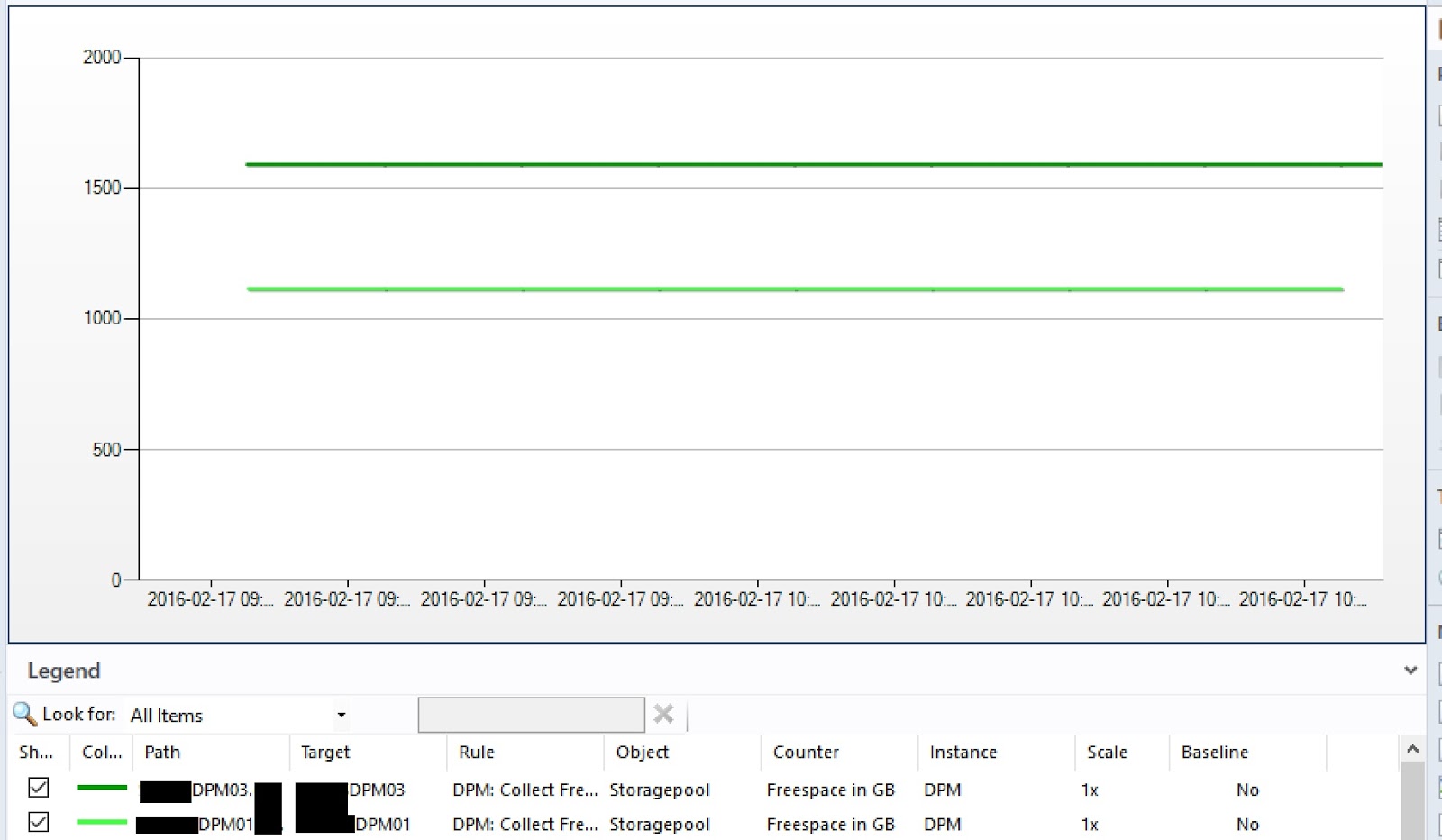
I've created a small PowerShell-script that is ready to be used as a Performance Rule in System Center Operations Manager to monitor the amount of freespace in the storage pool on your DPM-server.

I will post a complete guide later on how to create the rule in SCOM!


-----------------------------------

#Load the MOMScript API and the PropertBag provider
$API = New-Object -comObject "MOM.ScriptAPI"
$bag = $api.CreatePropertyBag()

#Log an event at script-start
$api.LogScriptEvent("FreeDiskSpace.ps1",3280,0,"Collect FreeSpace in DPM-storagepool Script is starting")

#Main PowerShell-script
$FS = get-dpmdisk | where {$_.DiskTypeLabel -ne "Basic"} | Select UnallocatedSpaceLabel | ft -HideTableHeaders| Out-String -Stream
$FS = $FS | ForEach-Object {$_ -replace "GB", ""} 
$FreeSpace = ($FS | Measure-Object -Sum | select sum | ft -HideTableHeaders | Out-String).trim()

$TS = get-dpmdisk | where {$_.DiskTypeLabel -ne "Basic"} | Select TotalCapacityLabel | ft -HideTableHeaders| Out-String -Stream
$TS = $TS | ForEach-Object {$_ -replace "GB", ""} 
$TotalSpace = ($TS | Measure-Object -Sum | select sum | ft -HideTableHeaders | Out-String).trim()

#Add the data into the PropertyBag
$bag.AddValue("FreeSpace",$FreeSpace)
$bag.AddValue("TotalSpace",$TotalSpace)

#Log an event that our script is complete
$api.LogScriptEvent("FreeDiskSpace.ps1",3281,0,"Collect FreeSpace in DPM-storagepool Script is complete.  
$FreeSpace GB of $TotalSpace GB free in diskpool on $env:computername")

#Output the PropertyBag data for SCOM consumption
$bag

-----------------------------------


Kind Regards
Markus Eliasson

Thursday, February 4, 2016

Move protected data between DPM-disks: MigrateDatasourceDataFromDPM

Hi everyone,

Here is an example on how I use the MigrateDatasourceDataFromDPM.ps1 when I want to consolidate protected data or just empty one disk in the DPM storage-pool.

The ntdiskid-number in the script is the number you can see in either the get-DPMDisk output, the Windows Disk Management GUI or under Management - Disks in the DPM-console.

In the example below I want to move all data from disk 1 to disk 3,5 and 6:

$source = get-dpmdisk -dpmserver MyDpmServer | where {$_.ntdiskid -eq 1
$destination = get-dpmdisk -dpmserver MyDpmServer  | where {3,5,6 -contains $_.ntdiskid} 
MigrateDatasourceDataFromDPM.ps1 -DPMServername MyDpmServer  -source $source -destination $destination

//Markus