Monday, October 12, 2015

The replica is inconsistent with the protected data source (ID30111)

Hi,

Today I ran into a virtual machine which after months of successful jobs started to fail while trying to protect it with via Online Snapshot.

ID 30111
The event logs on the Hyper-V host for the virtual machine did not give me any additional information so I logged onto the virtual machine itself and ran VSSADMIN List Writers and it showed almost all VSS-writers in a "[10] Failed" state with the error "Timed Out".

I restarted all failed VSS-writers but as soon as I restarted the backup-job, the VSS-writers timed out again. The application event log on the virtual machine had the following errors: 
  • Event ID 17 "Could not find a matching original volume for shadow volume \\?\Volume{GUID}"
  • Event ID 12293: "Volume Shadow Copy Service error: Error calling a routine on a Shadow Copy Provider {74600e39-7dc5-4567-a03b-f091d6c7b092}. Routine details PreFinalCommitSnapshots({a2709227-7262-48ab-987b-5dc13bac4ab9}, 1) [hr = 0x80070490, Element not found.].
    Operation: Executing Asynchronous Operation.
    Context: Current State: DoSnapshotSet.
Resolution

As Event ID 17 was referring to a volume, I opened up an elevated PowerShell-window and ran Diskpart followed by List disk.
From the output, I could see was that one of my volumes were in an Offline state:
Disk 0 Online 60 GB 0 B *
  Disk 1 Offline 20GB 1024KB
  Disk 2 Online 100GB 0 B
I opened up Disk Management (diskmgmt.msc), right-clicked disk 2 and made it Online.

Without further actions, I tried to perform a consistency check on the virtual machine from the DPM-console and the job completed successfully.

Kind Regards
Markus Eliasson


Monday, August 24, 2015

Expired Disk Based Recovery Points are not deleted after installing DPM 2012 R2 UR7

Hi Everyone,
After you install DPM 2012 R2 UR7 update (KB3065246), DPM cannot delete expired recovery points. This will lead to extra recovery point volume usage.  
Please follow the link and instructions below to download and install the fix for this issue:
Fix for a known issue with Update Rollup 7 for System Center 2012 R2 Data Protection Manager
Install Instructions:

Please ensure you are currently running DPM 2012 R2 UR7 before applying the fix.
The issue is not applicable to older updates and will be fixed automatically in later updates. Please perform the below steps on all DPM servers running DPM 2012 R2 UR7. Steps to verify that you are running DPM 2012 R2 UR7

1. Open DPM UI and click on help menu option and click on "About Data Protection Manager" option.

2. A popup will be displayed with version information.

3. Make sure version is 4.2.1338.0, else no need to apply the fix.

Updating pruneshadowcopiesDpm2010.ps1 script:

4. Backup original pruneshadowcopiesDpm2010.ps1 from System Drive:\Program Files\Microsoft System Center 2012 R2\DPM\DPM\bin to another location to make sure you have a copy saved with you.

5. Download pruneshadowcopiesDpm2010.ps1 file from the link above.

6. Replace the original pruneshadowcopiesDpm2010.ps1 at the location in step 4 with the new downloaded pruneshadowcopiesDpm2010.ps1 file.

7. Monitor DPM for one day and it should clean up the expired recovery points, the cleanup happens at regular intervals once a day during midnight.

Shrinking the recovery point volume (optional):

8. In case the Recovery Point Volume already increased and DPM is consuming a lot of storage you can try the option of shrinking the recovery point volume using the below steps: 

     a. Click on the Protection Tab

     b. Right click on the Protection Group and select “Modify Disk Allocation”

     c. Click on the Shrink link next to each Recovery Point Volume, it will display the new size of the volume.

     d. Click on OK it will open a new popup showing the progress of DPM Shrink operation.

Note: Use the Shrink feature judiciously, repeated small shrinks cause free space fragmentation and increases the number of extents.
Kind Regards
Markus Eliasson

Wednesday, May 6, 2015

Troubleshoot ID 30111: VssError: The specified object was not found

Hi folks,

Here's a quick solution how to fix the following error in DPM in a scenario where you have configured Online Snapshot-protection of a virtual machine:
The VSS application writer or the VSS provider is in a bad state. Either it was already in a bad state or it entered a bad state during the current operation. (ID 30111 Details: VssError: The specified object was not found. (0x80042308))

Troubleshooting steps:

  1. Verify that the virtual machine is not deleted in Hyper-V/VMM.
  2. Modify the protection group where you configured protection for the virtual machine.
  3. Expand your Hyper-V cluster and locate your virtal machine in the "Modify Group"-wizard.
  4. Expand the virtual machine and make sure the checkbox for "Hyper-V\Online\ServerName" is checked.
  5. Complete the "Modify Group"-wizard by clicking Next untill it updates the configuration.
  6. When you succesfully have created a recovery point for the virtual machine; Stop the protection of the failing datasource.

Problem cause:

This problem will occur when a virtual machine gets clooned or deleted and then recreated again with the same name.

//Markus

Wednesday, April 29, 2015

Update Rollup 6 for System Center 2012 R2 Data Protection Manager

Update Rollup 6 for DPM 2012 R2 has been realesed!

And Microsoft gives us a lot of bugg fixes as well as two new features:

  • Option to keep online backup data while deleting a protection group
  • Support for sQL Server 2012 as DPMDB
For more information and download:

//Markus

Restore DPM DB from Azure Backup Vault

Recently a company contacted me and needed help to restore a failed DPM server. The challenge in the restore was to recover their DPM database as it was protected via Online Protection by the failed DPM-server.

This blogpost will cover how you restore the DPM DB from an Azure Backup Vault when the DPM-server protecting the database has failed.

Prerequisites

·         A clean installation of DPM 2012 R2 with a local SQL 2012-instance on a Windows Server 2012 R2 with the same computer name as the failed DPM-server.
·         The storage connected to the new server as the failed DPM-server had.
·         The Azure encryption passphrase for the failed DPM-server.

Restore the DPM DB from Windows Azure


1.     Log into your Azure Portal: https://manage.windowsazure.com

2.     In the Azure Portal, navigate to Recovery Services – “Your Backup Vault-name”.

3.     Download the Microsoft Azure Recovery Service (MARS)-agent.

4.     From the same page, download the Vault credentials to your Backup Vault.

5.     Install the MARS-agent with your preferred settings on a machine not running DPM.

6.     Open Microsoft Azure Backup that you just installed.

7.     In the right table, press “Recover Data”.

8.     On the Getting Started page choose “Another server” and specify your Vault Credentials.

9.     Select the failed DPM-server and press ext.

10.  Choose “Browse for files” and press next.

11.  Select the volume and choose date and time from which you want to recover, press next.

12.  In the “Available items:” window, select the root-folder and press next.

13.  Choose the path to where you want to recover and keep the other settings as default.

14.  Specify the same passphrase as you had configured on the failed DPM-server and click Recover.

Restore and synchronize the DPM database


1.     Make sure the restored DPM-database is placed on your newly installed DPM-server.

2.     Stop the SQL-Agent service and all DPM-services on the new DPM-server:

·         DPM

·         DPM AccessManager Service

·         DPM Writer

·         DPM RA

3.     Open SQL Server Management Studio and detach the new/empty DPM-database.

4.     Right-click “Databases” in the SQL-instance and choose “Attach…

5.     Click “Add…” then browse to your restored DPM-database and click OK twice.

6.     Start the SQL-Agent service and all DPM-services.

7.     Open the DPM Management Shell and run:

DpmSync –sync

8.     After you have run the DPMSync –sync command, you must perform a consistency check for all data sources from the DPM-console.
Your DPM-server should now be in a functional state!
//Markus

Monday, February 23, 2015

Troubleshoot ID 32008: DPM cannot protect this SharePoint farm as it cannot detect the configuration of the dependent SQL databases.

Today I helped a customer that was trying to protect a SharePoint-farm with DPM 2012 R2 UR5. 
The SharePoint was configured as followed:
  • 2 Front-End web (WFE) servers running on Windows Server 2012 R2
  • The SharePoint-databases resided on a SQL 2014 AlwaysOn-cluster.

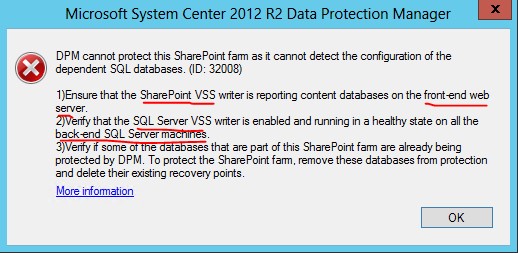
When we tried to add the SharePoint form to a protection group, we were prompted with the following error:

DPM cannot protect this SharePoint farm as it cannot detect the configuration of the dependent SQL databases. (ID: 32008)

1) Ensure that the SharePoint VSS writer is reporting content databases on the front-end web server.

2) Verify that the SQL Server VSS writer is enabled and running in a healthy state on all the back-end SQL servers machines.

3) Verify if some of the databases that are part of this SharePoint farm are already being protected by DPM. To protect the SharePoint Farm, remove these databases from protection and delete their existing recovery points.

Additional details of the error could not be found in any logs on the DPM-server, WFE-servers or the SQL-servers…

Troubleshooting steps:
  1. Verify that the SharePoint VSS writer is running and the status is stable on the WFE-server. From an elevated command prompt: vssadmin list writers 
  2. Make sure that DPM are not protecting any SharePoint Config- or Content-databases that belongs to the SharePoint-farm. (Don’t forget to remove any inactive protection as well!)
  3. Run the ConfigureSharePoint command on the front-end web server from an elevated command prompt (%program files%\Microsoft Data Protection Manager\DPM\Bin\):
    ConfigureSharePoint.exe –EnableSharePointProtection 
  4. (For SQL-cluster using SQL Alias)
    Make sure your SQL aliases is configured properly on your WFEs (both 32bits & 64bits):
    http://mmman.itgroove.net/2013/11/03/setting-up-a-sql-server-alias-with-sharepoint-server-2013/ 

Additional troubleshooting:
However, even after performing the steps above we were still encountered with the same error message and DPM could not enumerate all SharePoint-content databases that belonged to the farm.

What we had to do (even as we could see that the SharePoint VSS writer was up and running) were to run the Stsadm command-line tool on the WFE-server. 
The Stsadm.exe is found together with the other SharePoint products and technologies in the default installation folder: %CommonProgramFiles%\microsoft shared\web server extensions\12\bin.

To register the SharePoint VSS writer you will have to run the following command from an elevated command prompt: stsadm -o –registerwsswriter.


After the operation completed successfully, we could go back to my DPM-server and configure protection for the SharePoint-farm with any errors.

//Markus

Tuesday, February 10, 2015

List unproteced volumes on your DPM-server

Hi folks,

Last week I encountered a customer that had a challenge that backup operators would add a production server to a protection group in DPM but not protect all necessary volumes on the production server.

To solve their challenge I created a PowerShell-script that queries all protected servers and compare what volumes they have with the protected volumes in DPM. The result of the script is a list with the server name and drive letter on the volume that is not protected.

# Create folder for output-files
New-item C:\Temp\DPM\Scripts -type directory -force | Out-Null

# Clears all content in output-files, if exists
Clear-Content C:\Temp\DPM\Scripts\AllVolumes.txt
Clear-Content C:\Temp\DPM\Scripts\ProtectedVolumes.txt
Clear-Content C:\Temp\DPM\Scripts\NotProtectedVolumes.txt

# Get all servers that is present in any Protection Groupp
$Allps = Get-ProductionServer | where { $_.ServerProtectionState -eq "HasDataSourcesProtected" }

# Gets all Protection Groups
$pg=Get-ProtectionGroup -DPMServerName (&hostname)

# Gets all protected Volumes
foreach ($ps in $pg) { GET-DataSource -ProtectionGroup $ps | where { $_.ObjectType -eq "Volume" } | Select Computer,Name | ft -HideTableHeaders | out-file -Width 50 C:\Temp\DPM\Scripts\ProtectedVolumes.txt -Append }

# Gets all available Volumes
foreach ($Allps1 in $Allps) { Get-DPMDatasource -ProductionServer $Allps1 -Inquire | where { $_.ObjectType -eq "Volume" } | Select Computer,Name | ft -HideTableHeaders | out-file -Width 50 C:\Temp\DPM\Scripts\AllVolumes.txt -Append }

# Removes empty lines and sort data from output-files
(gc C:\Temp\DPM\Scripts\ProtectedVolumes.txt) | ? {$_.trim() -ne "" } | Sort-Object | Set-Content C:\Temp\DPM\Scripts\ProtectedVolumes.txt
(gc C:\Temp\DPM\Scripts\AllVolumes.txt) | ? {$_.trim() -ne "" } | Sort-Object | Set-Content C:\Temp\DPM\Scripts\AllVolumes.txt

# Compare protected volumes with all volumes and exports not proteced volumes

Compare-Object $(Get-Content C:\Temp\DPM\Scripts\ProtectedVolumes.txt) $(Get-Content C:\Temp\DPM\Scripts\AllVolumes.txt) -PassThru | out-file -Width 50 C:\Temp\DPM\Scripts\NotProtectedVolumes.txt -Append

Remember to run the code in an elevated DPM Shell and if you want to use the script for another data-source rather then volumes: Change the "Volume" to for example "System Protection" in line 14 & 17. Example: { $_.ObjectType -eq "System Protection" }


Take care! //Markus